App for Android phones
SecureVOIP - Android Application
Our Secure VOIP softphone app is available for Android Smartphones. It is a great option for anyone who needs to stay connected to the office from wherever they go. Our softphone app is free to use and have been pre-configured with all the pieces needed to start making calls.
All you need to do is enter your extension or 0800 number and password.
Older Versions of Android
If you are running a recent version of Android's Operating System then you should be good to go, otherwise, if you are running an older version of Android you may not be able to install the application
Install SecureVOIP Softphone.
- Go to the Android Play Store and search for 'SecureVOIP Basic' or you can click the image above to take you to the Application download
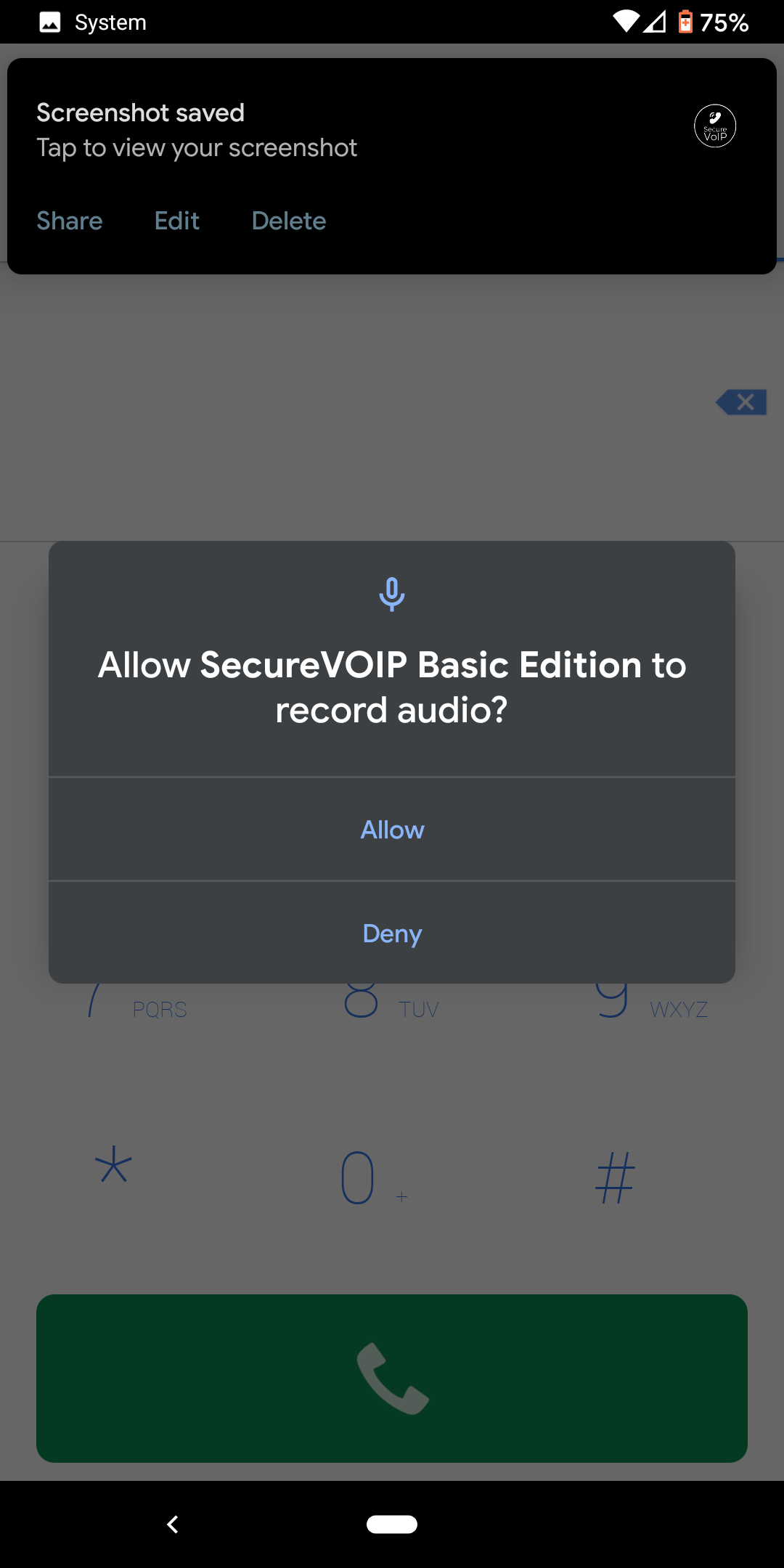
- Once downloaded Install the application and make sure you say 'Allow' to any questions for access to your device such as recording audio
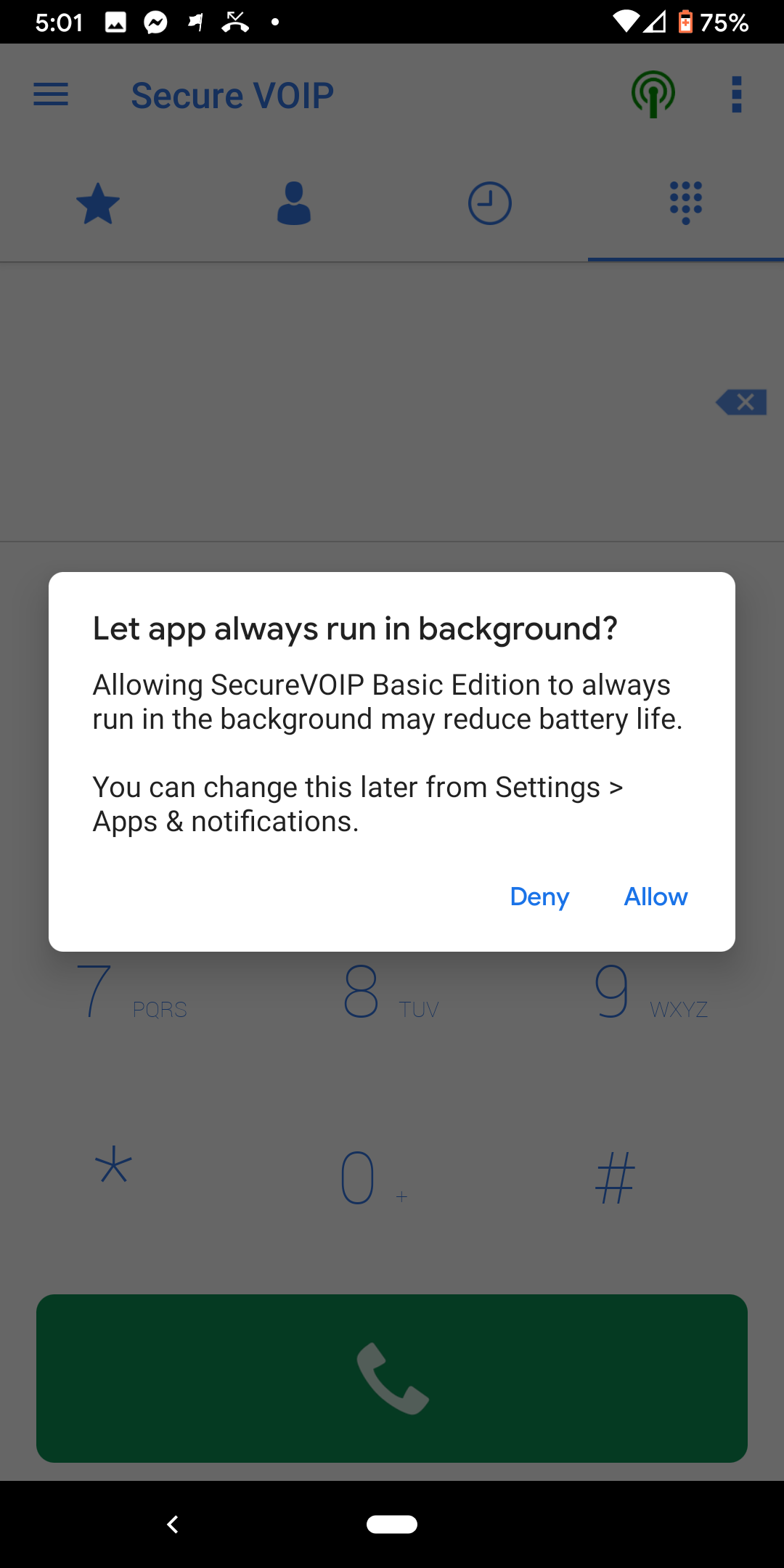
- You may then see another warning about the app being allowed to run in the background. Click Allow and you change these settings later
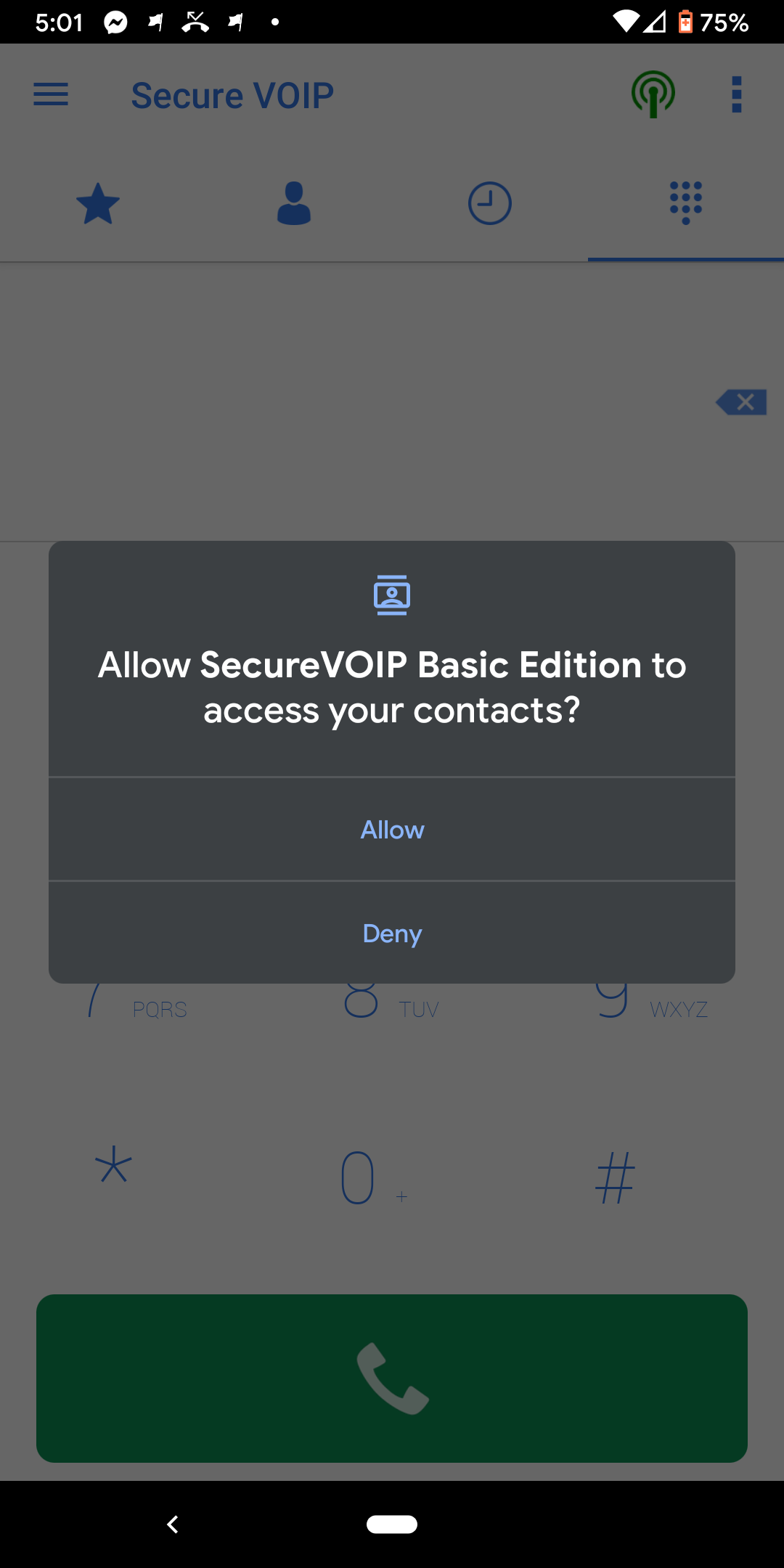
- The app will also need access to your contacts. Please click 'Allow'
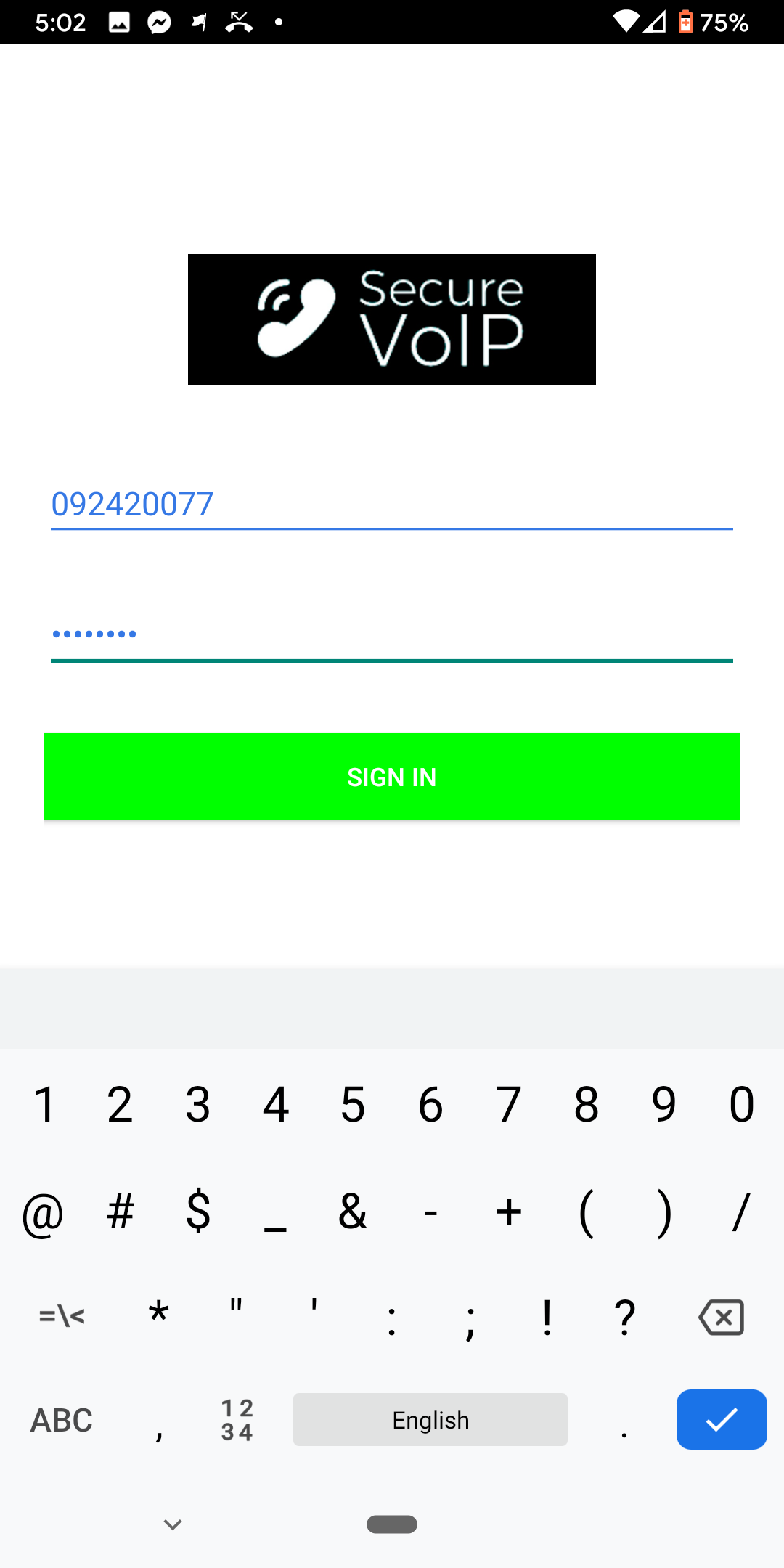
- You should now see a login screen. Enter your phone number and password. Do NOT use your account number or email address to login.
- You need to use a phone or extension 'login' number (e.g. 092345678) as your Phone number.
- If your details are correct you should be logged in. Click on the 3 lines in the top left corner to bring up the menu options.
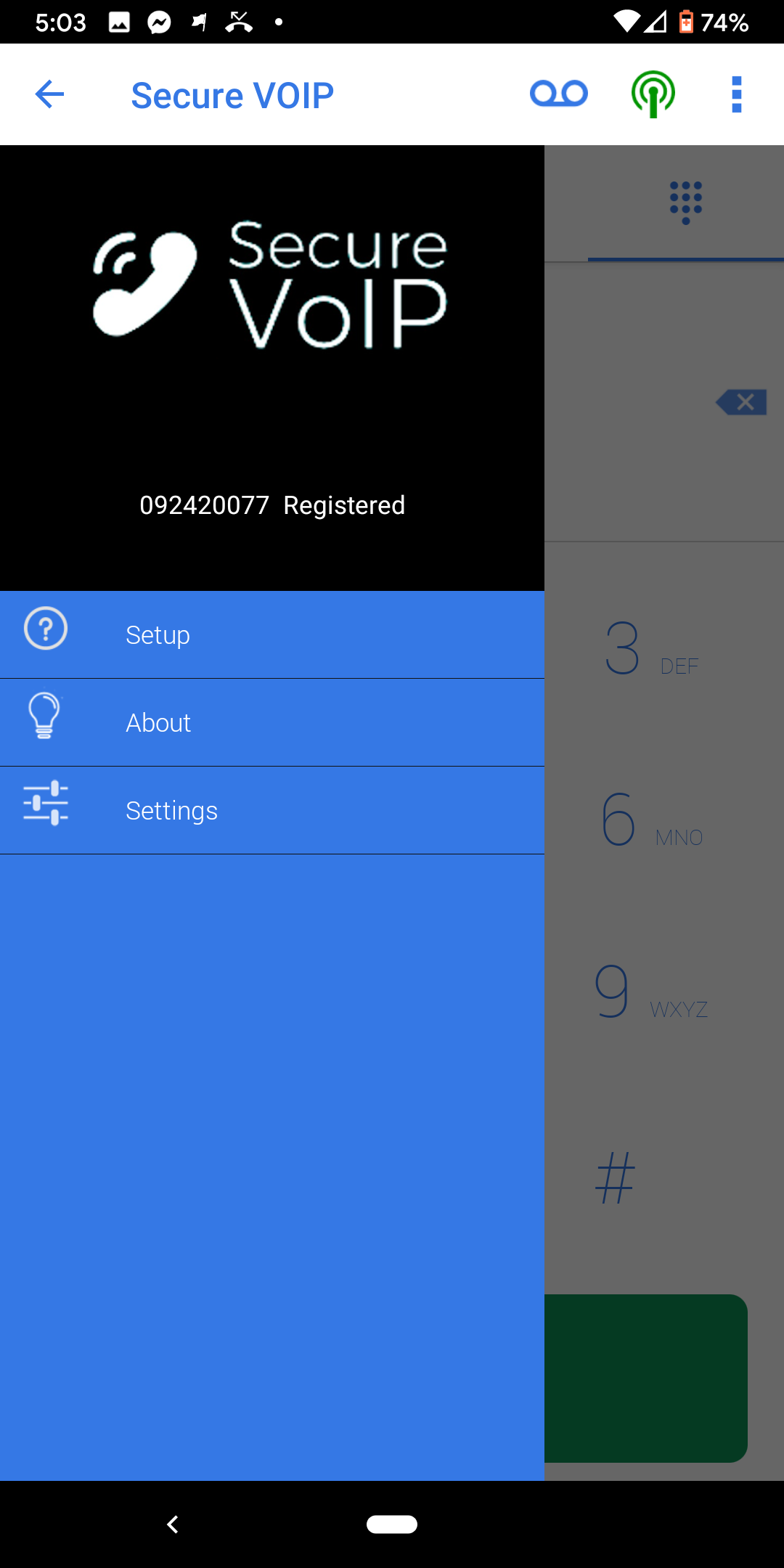
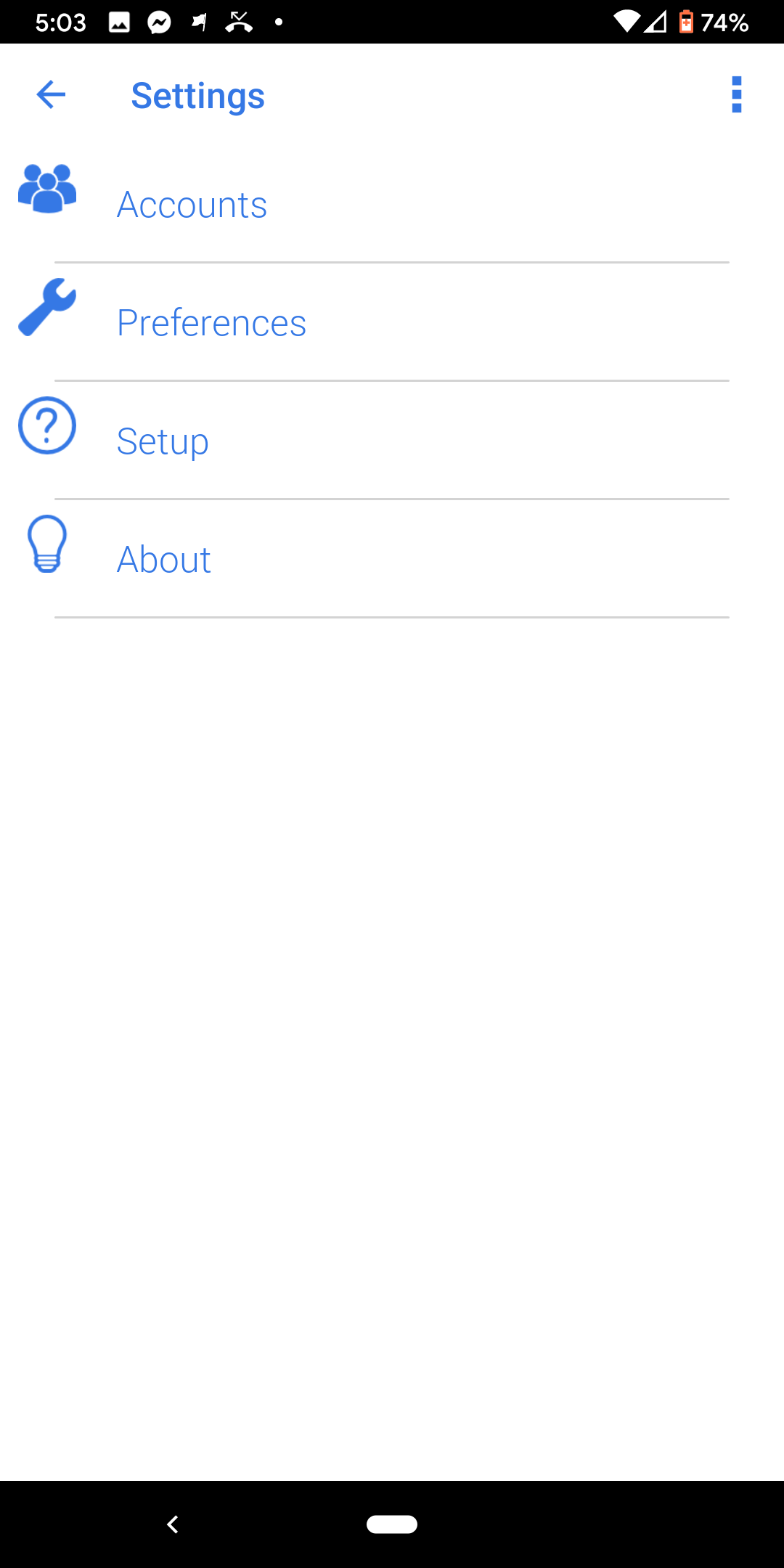
- Select 'Settings' to see the Accounts and Preferences sections
- By default the App will stay open in the background. This is the most reliable way to receive calls quickly.
- However, this can also use more battery. To reduce battery use you should click on 'Preferences' and change the setting for 'Incoming Calls'
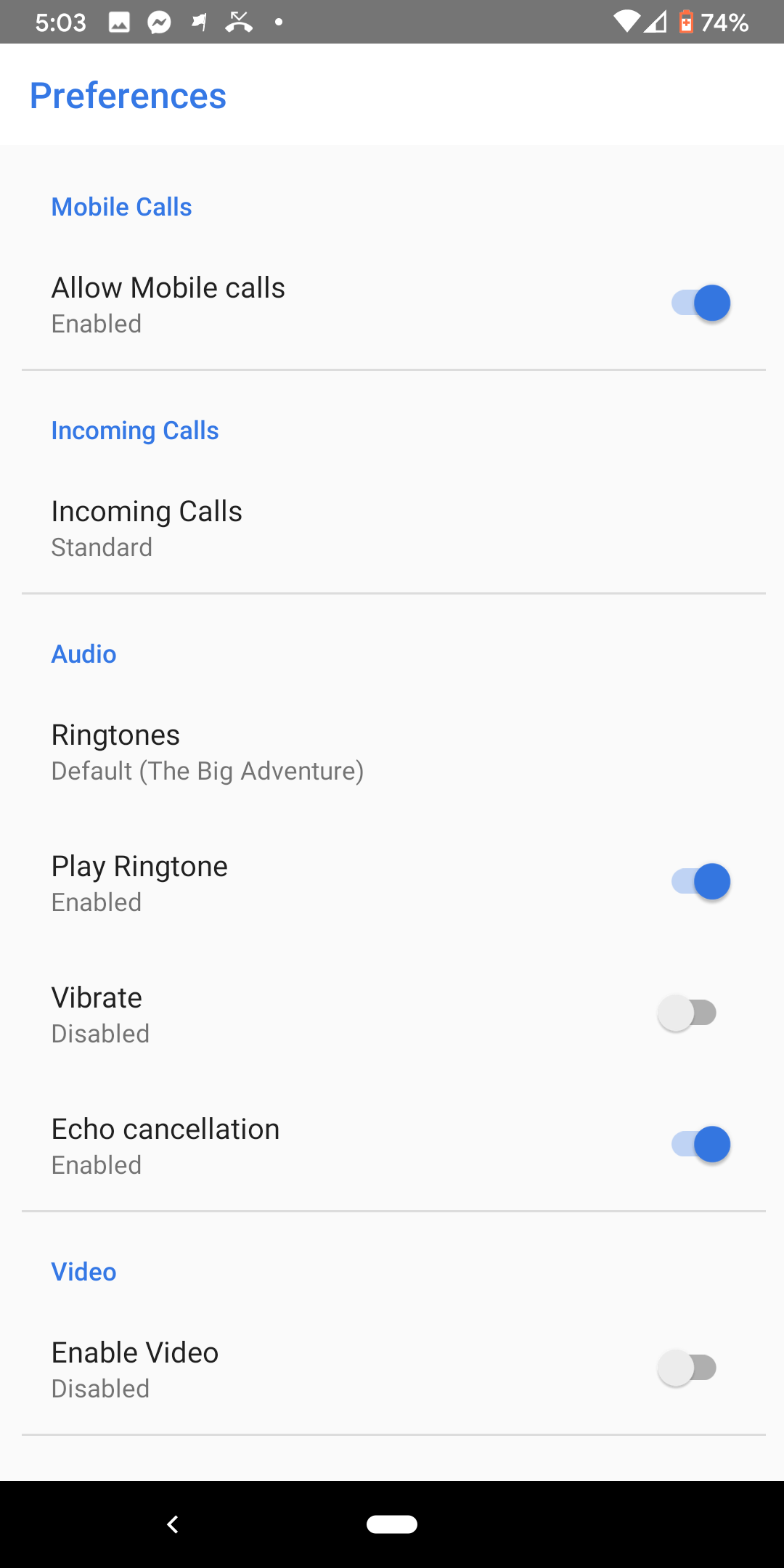
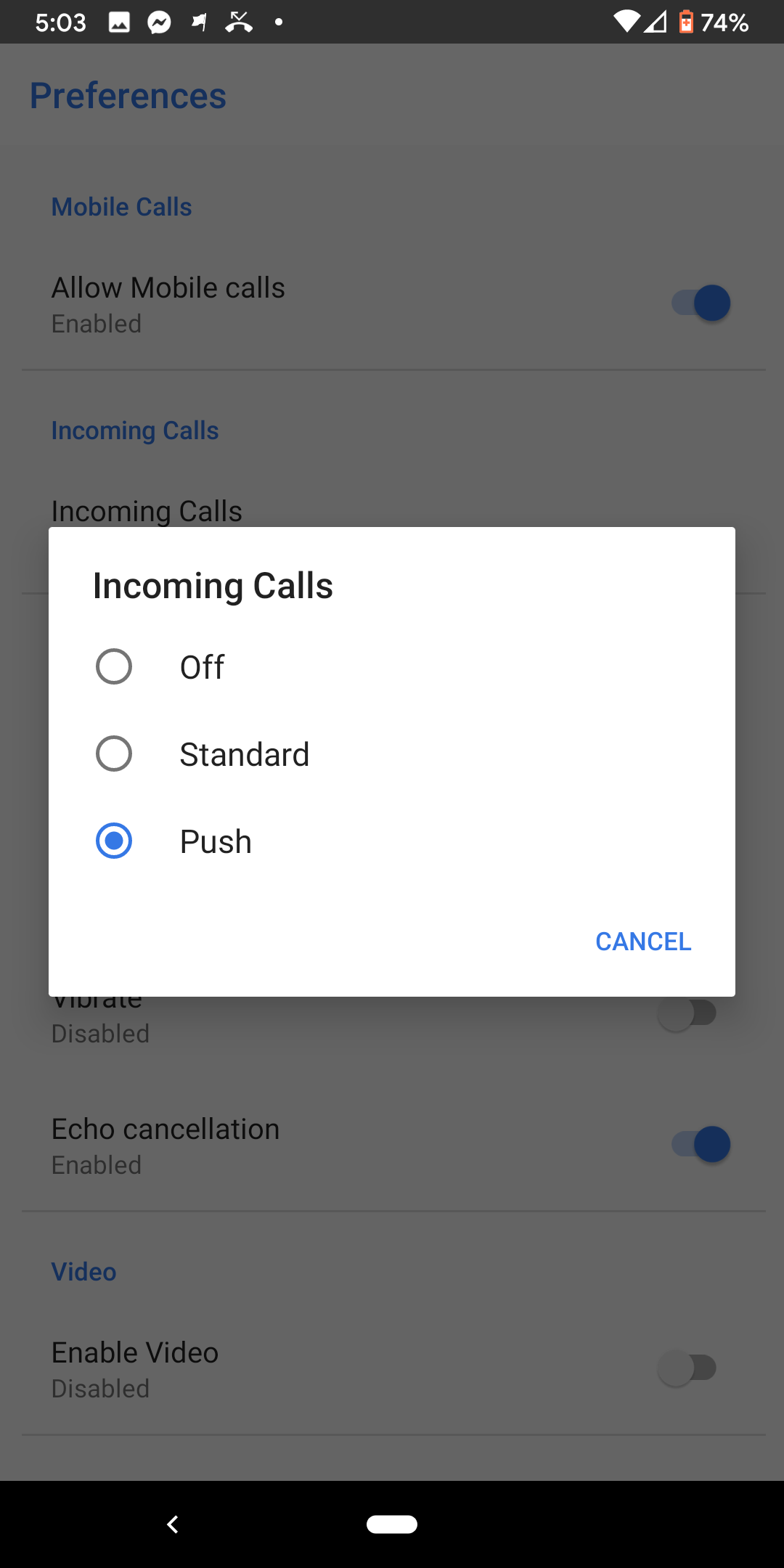
- Change the setting from 'Standard' to 'Push' if you wish to change this setting
- You can now start making calls via the Keypad screen. When you are on a call you have several options including mute, speakerphone, dialpad and hold
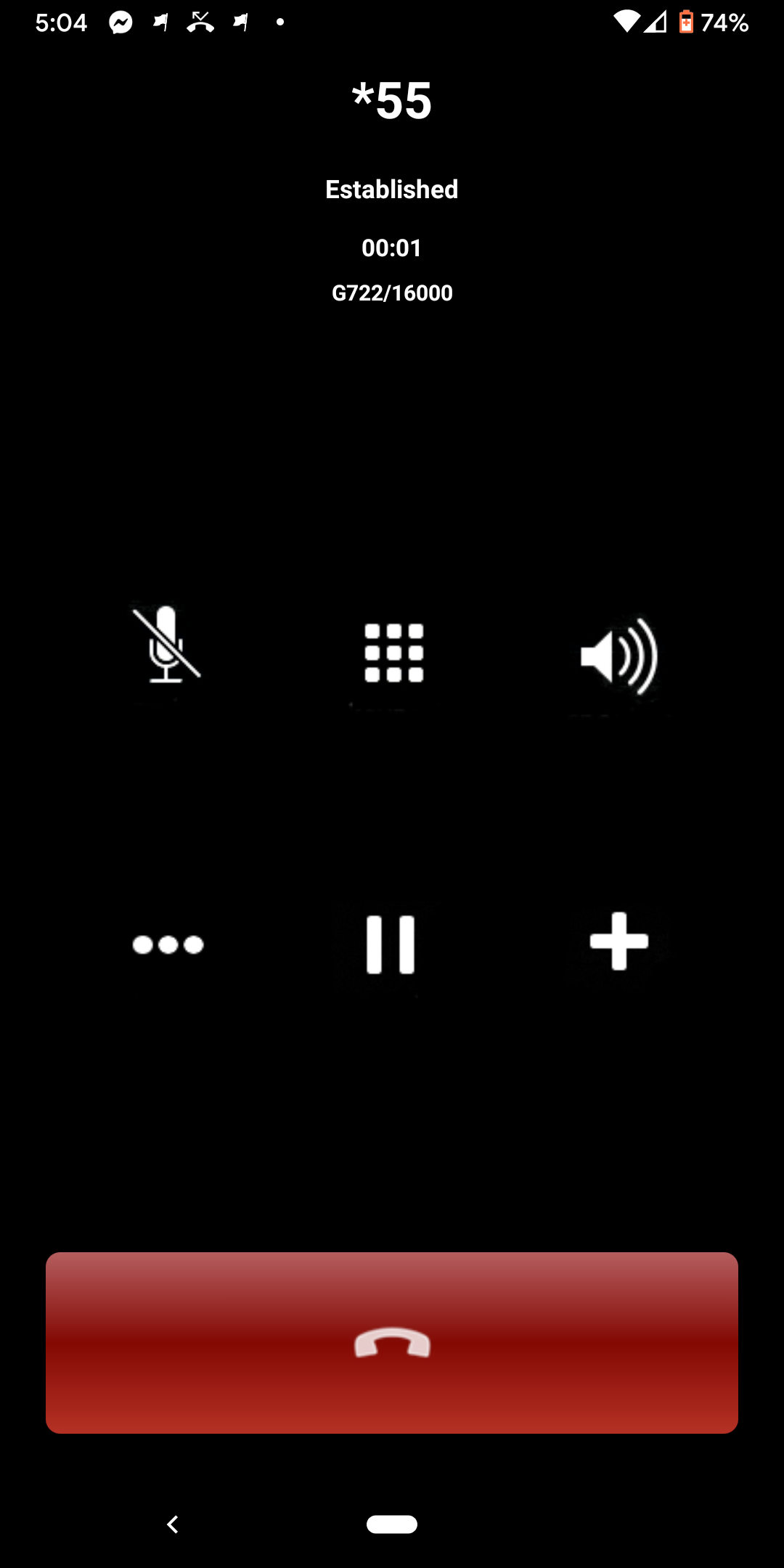
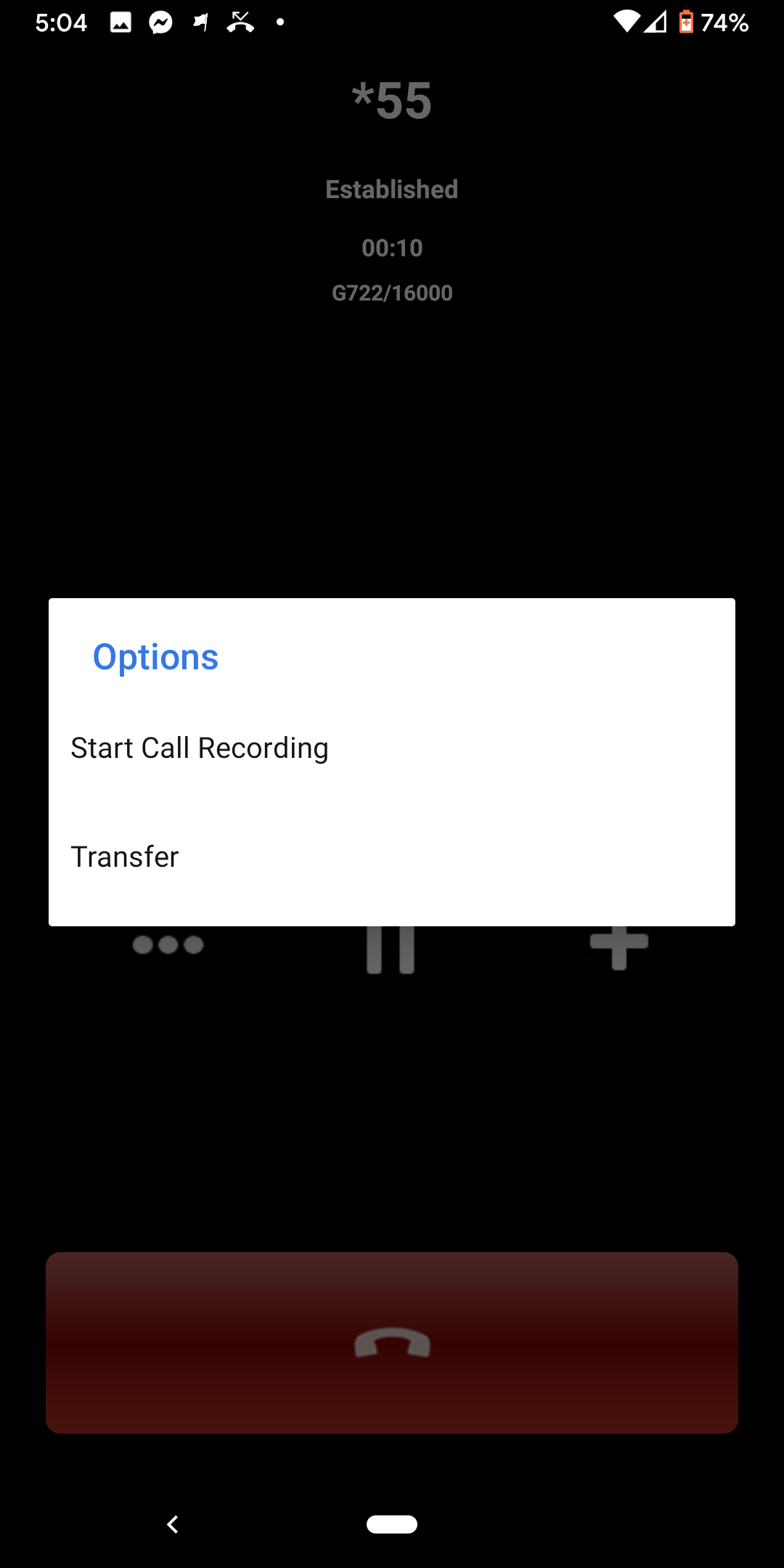
- You can also press the '+' button to setup a new call and the three dots '...' give you 2 more options; Start a call recording and Transfer your call
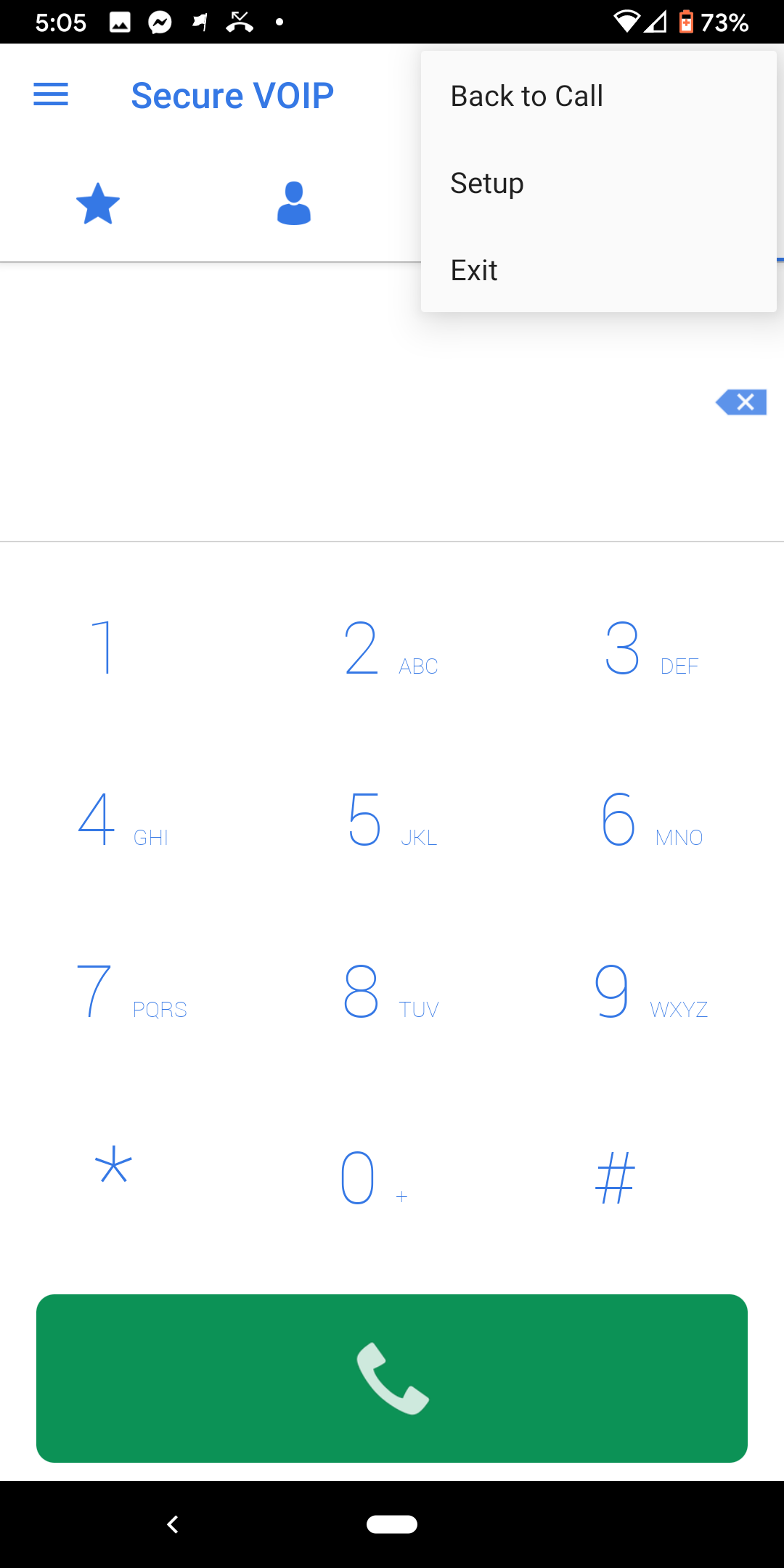
- If you do setup a new call with the '+' icon then to get back to your earlier call press the 3 dots in the top right corner and select 'Back to Call'
Related Articles
Configuring the Zoiper Smartphone App to work with Tech Connections
If you are having issues using our Tech Connections Smartphone Apps on your Apple iPhone or Android based phone then there is an alternative Phone Application that you can use to connect to our service called 'Zoiper'. In your App Store or Play Store ...Account Overview
The account summary dashboard provides a broad overview of your account. In this dashboard you can view account balance, plan details and customer account summary. Quick Guide Step 1: Make a Payment Log into https://portal.techconnections.co.nz/ ...Account History
You are able to view all invoices online in your account history, making it easy to keep track of your account. Quick Guide Log into https://portal.techconnections.co.nz/. Select Account > History. Find your invoice. Note: Click on to download or to ...Account Notification Settings
Our Account notification feature helps you keep on top of your accounts balances with a variety of low account credit notifications. Customize your individual thresholds such as minutes remaining, dollars remaining. Quick Guide Log into ...Adding a new number to your account
You can view, add and mange your VoIP numbers and Cloud PBX settings. First, you will need to add some new numbers to your account or port your existing numbers over. Add a number Log into https://portal.techconnections.co.nz Select Account > Numbers ...