Do Not Disturb
Setting Your Phone To Do Not Disturb
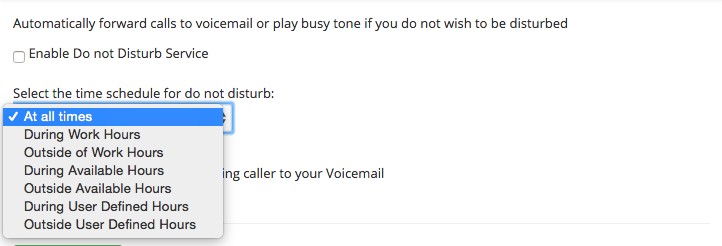
You can easily avoid interruption by setting your phone to do not disturb. This will send your calls directly to your voice-mail or play a busy tone without your phone ringing.
Quick Guide
- Log into https://portal.techconnections.co.nz/ > Voice and select the number you want to use Do Not Disturb with.
- Select Incoming Calls > Do Not Disturb.
- Click bos to Enable Do Not Disturb Service.
- Click box to Play Busy Tone, if not selected the caller will be diverted to voicemail.
- Click Save settings to update.
Related Articles
Call Setup API
Tech Connections offers a basic call setup API which allows a user to setup a phone call between 2 phone numbers using a simple web query. The 2 phone numbers do not need to be on Tech Connections network, however if this is the case please be aware ...Call Transfers
By using call transfer you can easily transfer your current caller to another person.Dial #0 for an attended transfer – this is where you can announce the caller and retrieve the call if it is unanswered. Dial ## for a blind transfer – where the call ...Call Forwarding
Control your incoming call flow when you’re away or busy with a permanent call forward. Use time schedules to give you more flexibility, for example, have your calls forwarded straight to your mobile during the day with an after hours forward to your ...Call Screening Options
We all like a little control over whom we take calls from right? We’re used to this on our mobile phones, and call screening is available for you to set up just the way you want in our Cloud PBX. Quick Guide Log into ...Call Pickup
The call pickup service allows you to remotely pick up an incoming call to another phone in your group or on your account. Call pickup functions *88 – Group pickup. This will pickup the latest incoming call to any of the phones in your group. *89 – ...