Huawei HG659 Router VOIP Port Provisioning
The Huawei HG659 Router has a built-in VOIP port that can be configured to work with Tech Connections. The following guide explains how to configure a Tech Connections phone number on Phone Port on the router.
1. Configure your VOIP settings in the telephony tab
Select 'Telephony' from the tabs at the top of the page and click on the VoIP page
Set Provider name to 'Tech Connections'
Set Primary registrar to 'phone.techconnections.co.nz' and port to 5060
Set Primary proxy to 'phone.techconnections.co.nz' and port to 5060
Set SIP Domain to 'phone.techconnections.co.nz'
Set Local Port to 5060
Tick the 'use outbound' check box
Set Outbound server to 'phone.techconnections.co.nz' and Port to 5060 Save Settings
2. Create a new VOIP provider
Set SIP number to your Tech Connections phone number (e.g. 092420001)
Set Username to your Tech Connections phone number (e.g. 092420001)
Set Password to your Tech Connections password
Ensure that the 'Enabled' check box is ticked3. Set up your codec preferences (if required)
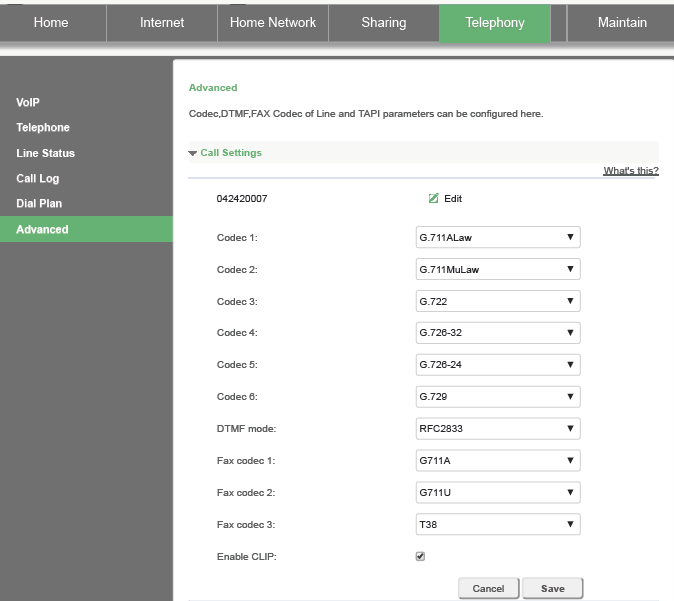
We recommend setting your Codec 1 setting to G.711ALaw unless you wish to save bandwidth in which case you can select G.729 as your preferred codec.
Set DTMF Mode to RFC2833
Set the Fax codecs to T38 as Codec 1 if you are plugging in a Fax machine
4. Enable service 'Voice' under the Internet Settings
This final step is important as your phone will not work unless you tick the Voice check box under your Internet settings.
Click on the Internet tab and scroll down to your Active Internet connection type
Next to the 'Service Type' ensure that you have ticked the Voice check box
Below is a screenshot of an example Internet connection using PPP although your connection details may differ.

If you are having any further issues getting your Huawei HG659 Router configure to work with Tech Connections then contact our Support team and we will do our best to assist you.
Related Articles
Why can’t I register my VoIP device?
Firewalls and Interfering routers are the most common cause of SIP registration failure with your VoIP device where the firewall/router blocks incoming traffic required by our SIP registration process. Remember that the process of any SIP ...Mikrotik Router Configuration
Mikrotik routers are recommended for use with Tech Connections's Broadband service and they are very simple to setup. Tech Connections do NOT use PPP for connections to our network. You simply need to enable DHCP on the WAN interface and use VLAN 10 ...Huawei HG659 Fibre Broadband Setup
To set up your modem, simply open a web browser on your computer and type the default gateway address 192.168.1.1 in the address bar. Default username - Admin Default password - Should be written on the back of the router. or @last 8 characters of ...Can I run my alarm systems across Tech Connections VOIP?
No. While you may be able to get your alarm system working over our VOIP platforms we do not recommend this and recommend an IP based alarm system or one using a traditional analogue phone line.Yealink Provisioning
When opening your Yealink phone box, you’ll find the Yealink main phone, one handset cord, one handset, one phone stand and one Ethernet cable. Flip the Yealink phone machine over and attach the stand to the back slots above the cable ports. With the ...