Set Up TP Link TL-MR6400 to work with Tech Connections Fibre
This guide will help you set up the TP-LINK TL-MR6400 to work on our Fibre Connections and if you have Simcard in your router this will also act as a backup to the main connection.
To login to TP-LINK TL-MR6400 Router, Open your web browser and type the default IP Address tplinkmodem.net in the address bar or type 192.168.1.1 into the address bar and press enter
Enter the username and password
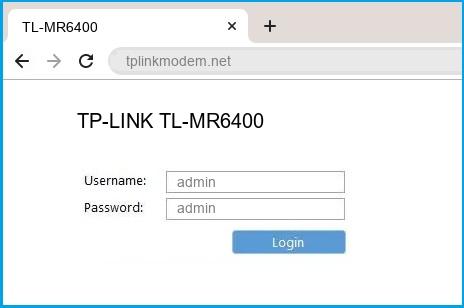

The default username for your TP-LINK TL-MR6400 router is admin and the default password is admin
And no need to get your breathing rates high in case you have changed the username / password of TP-LINK TL-MR6400 and forgot them, as you can just reset the TP-LINK TL-MR6400 router by press-and-hold the reset button with a clip for about 15 seconds.
Once you have logged in you can then start the quick set up as per below:
- Select your time zone from the dropdown list and then click next.
Set up the connection to the Internet (This is the important screen as this one is the one that allows this router to talk to our network )
- Tick the box to enable VLAN ID
- in the next VLAN ID field type in the number 10 as shown below
- Select Internet Connection Type Dynamic IP from the dropdown list
- Click Next
Change TP-LINK TL-MR6400 Default WiFi name (SSID) and WiFi Password and enable Network Encryption
- This is where you get to choose your new WiFi name! (it is best for security that you do change this from the default one)
- Tick Enable next to 2.4GHz Wireless
- Enter your new WiFi name in the Network Name (SSID) field ( this is what you look for when connecting to your WiFi)
- Create a password for your new WiFi network and write it down so you don't forget it.
- Click Next
- After you click next the router will then test the connection and then move on to the summary page to show you what you have set up.

Remember to call us on 0800 832 426 if you need any help or email us.
Related Articles
Mikrotik Router Configuration
Mikrotik routers are recommended for use with Tech Connections's Broadband service and they are very simple to setup. Tech Connections do NOT use PPP for connections to our network. You simply need to enable DHCP on the WAN interface and use VLAN 10 ...Huawei HG659 Router VOIP Port Provisioning
The Huawei HG659 Router has a built-in VOIP port that can be configured to work with Tech Connections. The following guide explains how to configure a Tech Connections phone number on Phone Port on the router. 1. Configure your VOIP settings in the ...Tech Connections generic SIP settings for connecting a SIP compliant device to our service
Customers with their own SIP enabled phone, gateway or PBX are free to use this to connect to Tech Connections's service. The device must be SIP v2 compatible. Refer to the settings below for a guide to how you should configure your device to connect ...Configuring the Zoiper Smartphone App to work with Tech Connections
If you are having issues using our Tech Connections Smartphone Apps on your Apple iPhone or Android based phone then there is an alternative Phone Application that you can use to connect to our service called 'Zoiper'. In your App Store or Play Store ...Adding user access to the Tech Connections Portal
Below you will see the steps to add other users to your Tech Connections portal. Remember that depending on the level of access other users could accidentally add or remove services from your Tech Connections accounts so we do recommend that you ...