Caller ID and Call Rejection Options

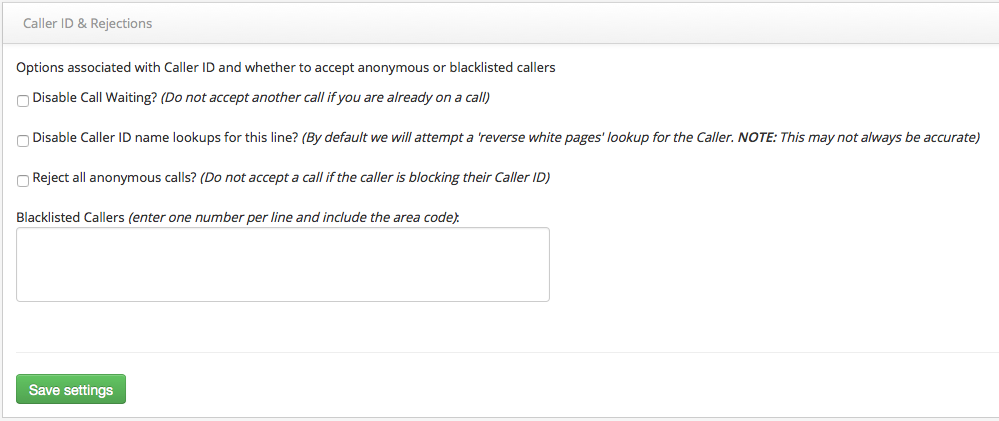
This feature helps you identify your Inbound caller’s CLI and set any call rejection options.
Quick Guide
- Log into https://portal.techconnections.co.nz/ > select the number you want to use Caller ID & Rejections.
- Select CloudPBX > Inbound Calls > Caller ID & Rejections.
- Select the option
- Click Save settings to update.
Related Articles
Feature Short Codes
Use the following shortcodes on your CloudPBX phone to set up various features from your handset instead of logging into the CloudPBX. Wherever you see ‘xxx’ below, this refers to a number you enter: Popular codes *55 Access Voicemail Portal *88 ...Caller ID (CLI) and Call Privacy
By using our Cloud PBX you have the option to show, block or showcase your business main number when making outbound calls. Content Caller ID Privacy Options By using our Cloud PBX you have the option to show or block your caller ID (also called ...Call Screening Options
We all like a little control over whom we take calls from right? We’re used to this on our mobile phones, and call screening is available for you to set up just the way you want in our Cloud PBX. Quick Guide Log into ...Call Setup API
Tech Connections offers a basic call setup API which allows a user to setup a phone call between 2 phone numbers using a simple web query. The 2 phone numbers do not need to be on Tech Connections network, however if this is the case please be aware ...Call Transfers
By using call transfer you can easily transfer your current caller to another person.Dial #0 for an attended transfer – this is where you can announce the caller and retrieve the call if it is unanswered. Dial ## for a blind transfer – where the call ...